The most capable authoring tool can still be the wrong fit if its course output doesn’t work with your learning platform. eLearning software for authoring creates digital training content, and common publishing formats include HTML5, iOS, Android, and files. The right choice depends on how you need to publish and where learners will access their courses.
It’s easy to focus first on templates, editing features, or price. But format compatibility and LMS integration determine whether a course moves smoothly from creation to learner access. This guide explains what authoring software does, what affects pricing, and how to assess formats and compatibility for your organization.
You’ll also learn how templates, mobile-friendly design, and collaboration features support course development, and where an LMS fits into the process. Use these points to choose software that aligns your content workflow with the systems your organization already uses.
Key Takeaways
- Choose templates and collaboration features around how your team creates, reviews, and updates training content.
- Map your authoring workflow to your LMS and publishing requirements before selecting a tool.
- Compare licensing models by considering user access, authoring needs, and the scale of your training program.
- Match course formats to the devices and platforms learners will use, including HTML5, iOS, Android, or files.
- Separate the role of course creation from learner management to identify which capabilities your organization needs.
Collaboration, templates, and mobile-friendly design
Templates, review workflows, and mobile layouts shape how teams build and maintain training. Evaluate them together: each choice affects course consistency, editing effort, and learner access.
Templates and Mobile-Friendly Design
Templates give designers a repeatable starting point for lessons, assessments, and navigation. eLearning course creation doesn’t require coding, so teams can develop content without building every screen from scratch. Compare templates by how clearly they organize learning objectives, examples, practice activities, and knowledge checks. A safety lesson, for example, may need a different structure from a software walkthrough.
Mobile-friendly design lets learners use a course on smaller screens without losing access to content or controls. Preview each lesson on a phone and tablet, then test text size, image placement, buttons, and quiz interactions. A slide that reads well on a desktop may need shorter text or a revised layout on a phone.
Check how the tool handles edits after publication. Drag-and-drop course builders can simplify updates, letting designers reposition text, images, or activities without rebuilding a page. Some installed authoring tools also include screen-capture or image-editing features, which can help teams create a software demonstration and prepare supporting visuals.
Use the instructional design survey conducted in 2024 as a reminder to assess tools against actual work. List the skills your team uses, then try a representative lesson in each shortlisted template. Record how easily designers can adjust layouts and adapt the course for mobile viewing.
Collaboration and Integrations
Training collaboration works best when contributors have clear roles and a defined review sequence. For a product update, a subject-matter expert can check technical accuracy, a manager can review policy language, and a designer can refine activities. Choose a workflow that gives each reviewer a clear task and captures feedback alongside the course material.
Before editing begins, define the review criteria: audience, learning objectives, terminology, and completion expectations. A shared checklist helps reviewers apply the same standards instead of sending conflicting comments. For example, reviewers can flag an outdated process screenshot while designers revise the lesson instructions and supporting quiz.
Collaboration and integrations connect course development to the systems used to publish and manage training. Map the path from authoring to learner access, identifying where files move and which platform receives the finished course. This can reveal duplicate work, such as manually re-entering course details after every revision.
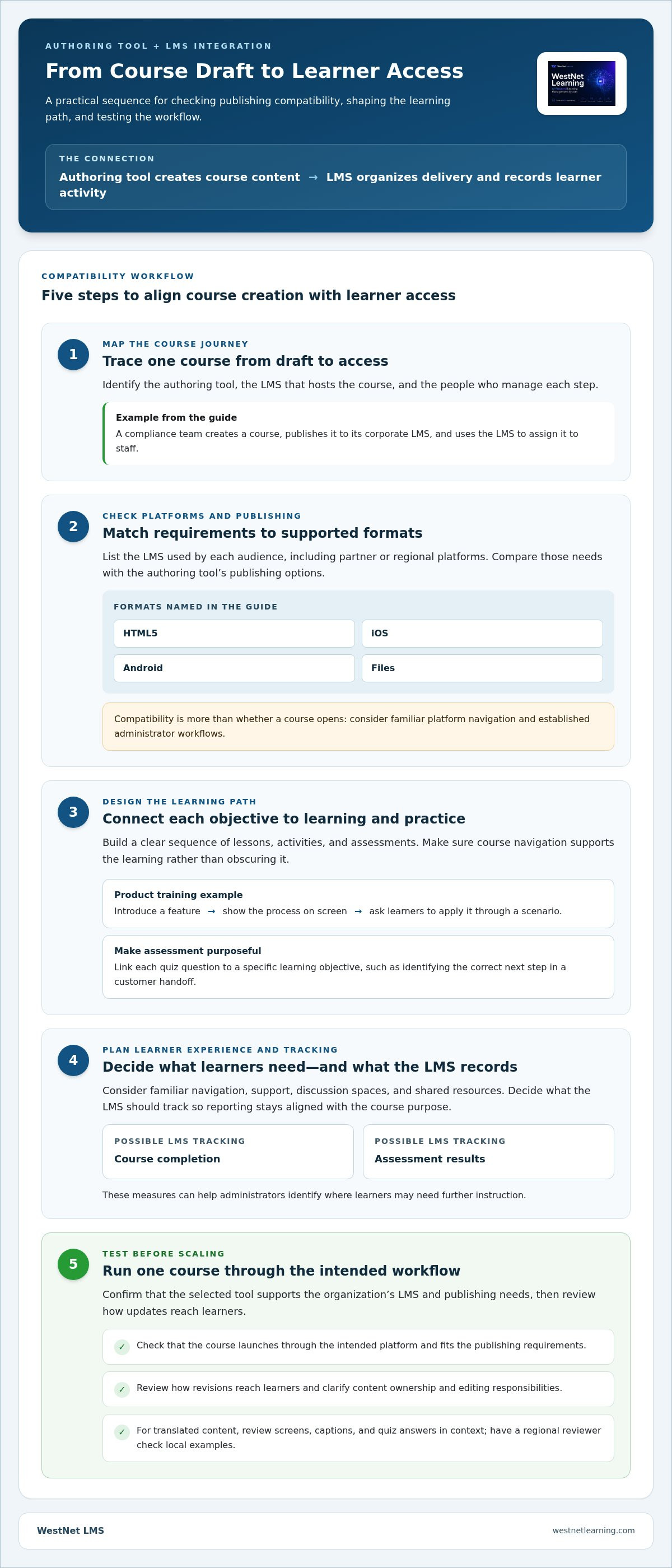
Test one course in the intended workflow before scaling up. Confirm that the selected tool supports your organization’s LMS and publishing needs, then review how updates reach learners. LMS Integrations can connect learning systems with existing tools, while a defined review process keeps content ownership and editing responsibilities clear.
Integration with learning management systems
An authoring tool creates course content; an LMS organizes its delivery and records learner activity. Integration connects those stages, so assess compatibility with your learners’ LMS and your publishing needs before selecting tools.
Plan the connection and platform adoption
Map one course from draft to learner access. Identify the authoring tool, the LMS that hosts the course, and the people who manage each step. For example, a compliance team might create a course, publish it to its corporate LMS, and use the LMS to assign it to staff. This map shows where content or learner records need to move.
Compatibility involves more than whether a course opens. It also affects whether learners can launch it through familiar platform navigation and whether administrators can manage it through established workflows. List the LMS used by each audience, including partner or regional platforms, then compare those requirements with the authoring tool’s publishing options. A consistent launch experience can reduce the need to learn a separate process.
Platform adoption also depends on how learners use the system. Consider whether they need discussion spaces, shared resources, or a clear route to support. For a distributed sales team, for instance, a course might sit alongside product guidance and follow-up learning within the existing platform. Keep the learner journey clear instead of adding disconnected destinations.
Design for learning, assessment, and tracking
Instructional designers can articulate a 360-degree learning path by connecting each objective to a lesson, activity, and assessment. A product training course might introduce a feature, show a process on screen, then ask learners to apply it through a scenario. Authoring tools should enable this sequence without making navigation obscure or engagement dependent on decorative elements.
Course builders can include quizzes to assess learners. Link each question to a specific learning objective, such as identifying the correct next step in a customer handoff. Then decide what the LMS should track, such as course completion or assessment results. These measures help administrators identify where learners may need further instruction and keep reporting aligned with the course’s purpose.
Global learning adds another integration consideration: translated content must preserve meaning and course structure. Prepare a source course with concise instructions, consistent terminology, and text that can be adapted for each audience. Review translated screens, captions, and quiz answers in context, since a phrase that fits one layout may need editing elsewhere. A regional reviewer can check that examples make sense to local learners.
Before deployment, test the complete learner journey in the intended LMS, from launch through assessment and completion reporting. A focused LMS integration overview can help teams frame that planning around existing systems and workflows.
Licensing and pricing models
Licensing determines who can use an authoring tool and how access is billed. Compare the license structure with your team’s development workload, publishing needs, and expected growth.
Licensing Models
Common licensing structures include subscriptions, named-user access, and perpetual licenses for installed software. A subscription typically provides access for a defined billing period, while a named-user license assigns access to specific people. A perpetual license grants ongoing use of a version, but upgrades or support may have separate terms.
Match the model to the people who develop courses. For example, a small team of instructional designers may need individual authoring accounts, while a larger department may need access across multiple course projects. Establish whether subject-matter experts need editing access or only a review role, too. These distinctions affect how many licenses the organization needs.
Check what each license covers before comparing plans. Review whether it includes publishing, collaboration features, content hosting, or use across multiple projects. For a global onboarding course, confirm that the workflow supports the required languages and lets the team revise content as processes change.
Pricing Plans and Scalability
Plan pricing can reflect user seats, authoring capacity, feature tiers, or usage. A lower tier may suit a team that develops occasional internal courses; a higher tier may better fit frequent production and broader collaboration. Compare what each plan enables, not just its headline category.
Price depends on the case and is provided after a quote request. Key cost factors include user access, authoring requirements, integrations, support, and deployment scope. For a growing organization, model the effect of adding designers, learners, and courses before choosing a plan. Learner counts may matter for an LMS, while authoring-tool licensing may focus on course creators.
Scalability involves more than adding accounts. Check whether the tool can support a larger content library, additional languages, responsive course layouts, and a consistent review process. For instance, a team expanding from one product course to onboarding and compliance content may need reusable templates and clearer publishing controls.
Build a comparison sheet using the same criteria for each plan: licensed users, included features, publishing options, integrations, and renewal terms. Add a realistic example, such as developing a new-hire course and updating it after a policy change. This makes trade-offs visible without relying on a single feature or an assumed future workload.
Finally, consider the cost of the workflow around the tool. If designers repeatedly recreate content or move files manually, those tasks add operational effort beyond the license itself. Choose a model that supports the learning experiences you intend to develop, with access and future expansion aligned to actual team responsibilities.
Supported publishing formats and platforms
Course authoring doesn’t end when the lesson is complete. The publishing format determines how content is packaged, while the learner’s platform determines where and how it opens. Common options include HTML5, iOS, Android, and files. Treat these as requirements to match against your LMS and learner devices, not interchangeable labels.
HTML5 supports browser-based course delivery, making it useful when learners access lessons through an organization’s web environment. For example, an enterprise may publish a product course for employees using desktop browsers, then test the same lesson on phones. Check navigation, text, images, videos, and assessment activity on each screen size. A course that opens successfully still needs to remain clear and usable.
iOS and Android are mobile platforms, so assess them against the devices learners actually use. A field team using Android phones may need to complete short product lessons between customer visits, while office staff may use iOS devices. Test the course on the relevant platform, including its menus, video playback, and quiz interactions. This shows whether learners can complete the intended activity without switching devices.
File-based publishing can support workflows where course content is transferred or stored as a file. The file type matters because the receiving LMS must accept the output and handle course launches and tracking as needed. Before authoring a full library, publish a representative course and test its complete path in the intended platform. Include a lesson with video and a knowledge check, not just a static introduction.
Use this sequence to assess each output:
- Name the learner platform: list the browser, iOS, or Android environment learners will use.
- Select the publishing format: compare HTML5, platform-specific delivery, and file-based output with the LMS workflow.
- Test a real course: include text, video, navigation, and one assessment activity.
- Review the learner experience: confirm that the course opens, displays clearly, and supports its intended interactions.
Keep authoring and publishing decisions connected. If a course includes a software demonstration, test its video and controls in the final output, not just in the authoring workspace. For a mobile safety lesson, review text length and touch interactions on the devices learners will use. These examples can reveal practical issues before a wider release.
For an enterprise rollout, record the tested format and platform for each course, then repeat the process after substantial edits. A revised video, quiz, or navigation path can affect the experience even when the course title stays the same. The takeaway is simple: choose the output based on the LMS and learner environment, then validate the full course there.
What is the difference between an LMS and eLearning authoring software?
An LMS manages learning delivery; authoring software creates learning content. They handle connected but distinct tasks. For example, a team can build a customer-service course in an authoring tool, then use an LMS to organize access and track learner progress.
Think of the authoring tool as the production workspace. It helps a course creator arrange text, images, videos, interactions, and assessments into a structured lesson. A course builder may include quizzes that assess learners, such as questions about handling a customer request. The creator shapes what learners see and do.
The LMS is the delivery and administration environment. It can organize courses, assign training to groups, and record learner activity. For example, a manager can assign a product course to a sales team and review completion information through the learning platform. The LMS supports ongoing management after course content is developed.
Some organizations use separate systems, while others choose a platform that combines course creation and learner management. The right decision depends on the workflow. A team with an established LMS may prioritize an authoring tool that publishes content compatible with that system. A team building its learning environment may assess content creation and course administration together.
Keep the responsibilities distinct during selection:
- Authoring: create lessons, add media, and build activities such as quizzes.
- Delivery: organize and present courses through the LMS learners use.
- Administration: manage assignments and review learner activity within the platform.
There’s also a practical difference in how courses are built and accessed. Desktop authoring applications can let training development continue without an internet connection. That can help a creator prepare or edit course materials offline. Learners’ ability to take a course offline is a separate matter, determined by the published course and its delivery environment.
Consider a software onboarding example. An authoring tool can create a guided lesson with screenshots and a quiz about a common task. The LMS can then present that course to new employees and record their activity. If learners need to demonstrate a skill, use an assessment that reflects the actual task rather than relying only on course completion.
To choose the right setup, map each step from content creation to learner reporting. Identify who builds courses, where learners access them, and which system records results. Then test a sample course through the intended workflow. Explore LMS integration options to connect course delivery with your existing learning systems.
WestNet LMS: WestNet AI LMS
WestNet LMS offers WestNet AI LMS, an AI-powered learning management system for corporate training. It connects course creation, learner development, and training oversight in one platform, with advanced analytics and gamification to support personalized learning.
Use AI Course Creator for automated course creation, or choose Off-the-Shelf eCourses when ready-made training suits your needs. LMS Integrations connect learning with existing tools. The platform can scale from small teams to tens of thousands of users, supporting organizations as their training needs expand.
If you’re aligning course development, delivery, and reporting, explore how these offerings fit your training workflow. Contact WestNet LMS to discuss your learning needs.
Build a Learning Workflow That Can Grow
Choose an approach that supports how your organization will create, deliver, and refine training over time. A practical next step is to map one priority learning need, identify who owns each stage, and define what success should look like for learners and administrators. This gives your team a sound basis for evaluating elearning software without letting feature lists drive the decision.
WestNet LMS brings together WestNet AI LMS, AI Course Creator, and LMS Integrations to support connected corporate learning workflows. Consider how these offerings align with your current systems and the employee experience you want to build. The right fit should move your organization forward clearly, not add complexity.
Contact WestNet LMS to discuss the learning workflow you want to advance. Take the next step with a clear goal and a stronger foundation for employee development.
Frequently Asked Questions
Who Can Leverage This eLearning Solution?
Organizations that need consistent training across employees, departments, or locations can use eLearning solutions. A human resources team might assign onboarding modules, while a compliance manager organizes required learning and reviews completion. Schools can support online instruction, and independent course creators can distribute digital lessons. The best fit depends on who creates the content, who learns from it, and how administrators need to manage participation.
What Is It?
eLearning software is a digital system for creating, delivering, or managing learning activities. The term can describe a course authoring application, a learning management system, or a platform combining both. For example, a company might use one tool to build a sales lesson and another to assign it to employees. Identify the task you need the system to handle before comparing products, since similar labels can describe different capabilities.
What Is eLearning Software and What Features Does It Include?
eLearning software supports the development or delivery of digital training, and features vary by product. An authoring application may provide editing tools, quizzes, and course publishing; an LMS may handle assignments, learner records, and reporting. Some platforms also include AI-generated course recommendations, gamification, or learner support. For example, a manager could use reports to identify employees who need follow-up after an assessment.
How Do Popular Platforms Compare?
Compare platforms by workflow, not brand popularity alone. Start with the roles your team needs: content creation, course assignment, learner reporting, or system administration. Then test a representative task, such as building a short product lesson and reviewing its learner record. Compare supported publishing formats, accessibility on learner devices, integrations, reporting, and licensing structure. A feature matrix makes trade-offs visible without assuming one platform suits every organization.
How Much Does This Software Cost in the United States?
Pricing varies by product and plan structure, so there isn’t one cost that applies across the United States. Price depends on the case and is provided after a quote request; cost factors can include user access, authoring capacity, integrations, support, and deployment requirements. For a useful comparison, estimate who will create courses, how learners will access them, and which capabilities your team needs. Avoid comparing plans by headline price alone.
Which Option Is Best for Businesses, Schools, and Course Creators?
The best option depends on the learning environment and the work users need to complete. Businesses may prioritize employee assignments, analytics, and HR system connections. Schools may focus on course organization and learner participation, while independent creators may need flexible authoring and publishing. Write down essential workflows first, then test those tasks in candidate platforms. For corporate training, WestNet AI LMS supports employee learning and development.
What Integrations and Standards Should It Support, Such as SCORM and xAPI?
Choose integrations and standards that match your existing learning systems and reporting needs. SCORM and xAPI are course content standards; compatibility can affect how a course launches and what activity data is recorded. Also consider connections to identity management or HR systems when they are part of your workflow. WestNet AI LMS supports eCourse creation in SCORM or xAPI, making format alignment a practical evaluation point.
What Are the Benefits and Drawbacks of Using It?
Digital learning systems can centralize course access, support repeatable training, and make learner activity easier to review. They can also require setup, content maintenance, and time to integrate with existing workflows. A platform won’t make unclear training objectives effective on its own. For example, a software tutorial still needs accurate instructions and useful practice. Weigh the time saved through centralized delivery against the effort needed to keep courses current.