A SCORM file is more than a set of lesson screens. It’s a ZIP package containing course content and an imsmanifest.xml file that tells a learning management system how to launch and use it. SCORM provides a standard way for online courses and an LMS to communicate, including reporting completion, scores, and time spent. A course can look finished yet fail to launch or track correctly if its files or settings don’t align with the LMS.
Choosing an authoring tool is as important as choosing a format. You need software that publishes the SCORM version your LMS supports and a reliable way to test the exported package before learners use it. This guide explains what a SCORM file contains, how to create and test one, and what to consider when selecting compatible authoring software and an LMS. You’ll get a practical overview of the workflow and the compatibility decisions that shape course creation and delivery.
Key Takeaways
- Understand how the ZIP package, manifest, and course resources work together to support LMS communication.
- Learn which publishing settings affect tracking and learner progress when exporting a course.
- Compare authoring software and LMS compatibility around the standards and reporting your training requires.
- Use a test environment to catch launch, completion, and tracking issues before learners access a course.
- Choose a course creation approach that fits your content, technical workflow, and delivery needs.
SCORM package contents
A SCORM package is a ZIP archive containing learning content and an imsmanifest.xml file. The manifest describes the package’s organization and resources, helping an LMS identify what to launch. Think of it as a map: HTML pages, media, and other course assets are the destinations, while the manifest explains how they fit together. This structure helps a SCORM file deliver courses consistently across compatible systems.
The ZIP may also contain schema files in XSD and DTD formats, which define rules for validating the manifest’s structure. If assembling a package manually, edit imsmanifest.xml to match the included course content and list the main HTML file as the first resource. For a SCORM file to launch as intended, its manifest references must match the files in the archive.
SCORM also defines how learning content communicates with an LMS after launch. Course content uses JavaScript API calls to exchange information with the LMS, which can record completion status, scores, duration, and other supported progress data. A shareable content object, or SCO, is an independent learning module that can report completion, scores, or time. For example, a course divided into modules may use separate SCOs to report progress for each one.
The package’s reporting depends on its SCORM version and implementation. SCORM 1.2 and SCORM 2004 are widely used versions, but their manifest details differ: SCORM 1.2 uses the resource attribute adlcp:scormtype, while SCORM 2004 uses adlcp:scormType. That capitalization difference matters when preparing a manifest manually. SCORM 2004 also supports sequencing rules, which can define the order in which learners experience content objects.
Standardized packaging gives authors a practical way to distribute content. A compatible LMS can launch courses from different sources, and authors can prepare content for compatible LMSs without rebuilding each course for a single platform. The package still needs a supported format and valid internal structure. Before uploading, review these core components:
- Manifest: Confirms the course organization and launch resources.
- Course assets: Holds the HTML, media, and other files referenced by the manifest.
- SCOs: Divide learning into modules that can report supported learner progress.
These parts work together: the manifest guides the LMS, course assets deliver the lesson, and SCOs communicate learning progress. Understanding their relationship helps you diagnose launch or tracking issues by checking the package structure, resource references, and communication behavior in the SCORM file.
Creating SCORM packages with an authoring tool
An authoring tool turns lesson content, assessments, and media into a package in the selected SCORM format. Its publishing capabilities determine what learners can launch and what progress the LMS can record.
Exporting a SCORM Package
Exporting means publishing a course from an authoring tool as a SCORM package for delivery through an LMS. Select a SCORM version supported by the destination LMS, then set how the course records completion and assessment results. The tool assembles the course files and package structure. A successful export must match the LMS’s compatibility and the learning outcomes you need to report.
Build the course before exporting: add learning content, arrange objects in sequence, and configure assessment rules. Choose the reporting options available in the authoring tool, then publish the package. For example, a course with a final quiz may report completion and a score, while a module-based course may need to report progress separately. Preview the published course to catch missing media or an incorrect launch point.
A converter can package existing learning content when the source files already form a usable course. However, it won’t automatically fix every content or tracking issue: a document converted into screens may not work like an interactive lesson. Review the output, confirm its navigation, and test its reporting settings. Use an authoring tool to revise the learning flow or add assessments; choose conversion when preserving existing material is the priority.
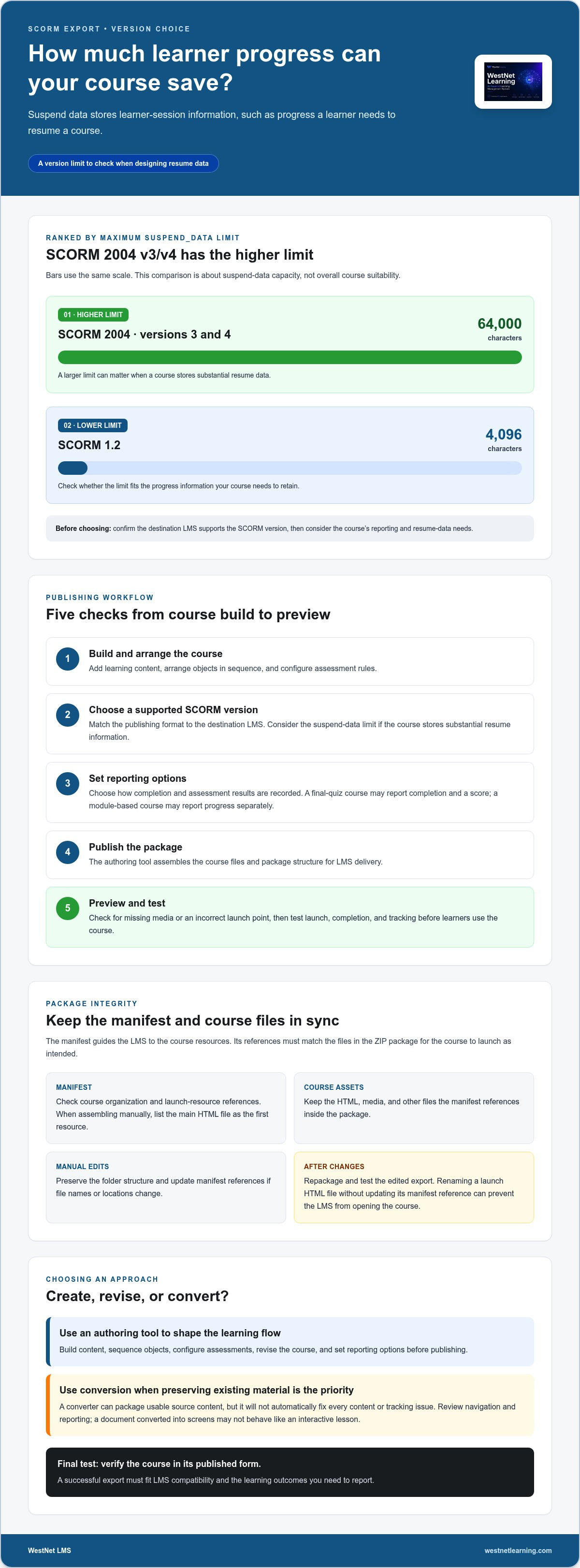
Large media assets can make a package take longer to transfer during upload, so compress images and remove unused files where practical. Keep media quality appropriate for the lesson, since excessive compression can make diagrams or demonstrations harder to follow. Suspend data is separate from package size: it stores learner-session information, such as progress for resuming a course. SCORM 1.2 has a suspend_data limit of 4,096 characters; SCORM 2004 versions 3 and 4 have a limit of 64,000 characters. If a course stores substantial resume data, that difference can affect which version fits its design.
Opening and Editing Packages
Opening a SCORM package means extracting its ZIP contents for inspection or revision. Use an archive utility to view the files, then edit the original project in its authoring tool whenever possible. Changing exported files directly can break links, launch behavior, or tracking logic generated by the tool.
If you must edit files manually, preserve the folder structure and update the manifest whenever resource names or locations change. For example, renaming a launch HTML file without updating its manifest reference can prevent the LMS from opening the course. Repackage the edited files and test the new export before learners use it.
For teams shaping new courses, AI-assisted course creation can support a more streamlined authoring workflow.
SCORM-compatible LMS and authoring software
What are alternatives to SCORM, such as xAPI and cmi5? xAPI, also called the Experience API, can record learning experiences beyond a launched course, while cmi5 combines SCORM-style packaging with more advanced tracking and offline learning support. AICC is another e-learning specification, with a different approach to packaging and communication.
Compatibility depends on both sides of the connection. When an LMS and e-learning content are SCORM-conformant, the LMS can play the content, and the content can run in that LMS. The authoring tool must export a supported SCORM version, and the LMS must handle its launch and tracking behavior. A manifest that follows one version’s requirements may not work as intended in another.
Think of compatibility like a DVD and a player. A DVD in a supported format can play in a compatible player, but that alone doesn’t ensure every player feature works. A SCORM file follows a shared reference for packaging and communication, much like a disc follows a playback format. Still, compatibility doesn’t mean every LMS supports every version or handles every tracking field the same way. Test the course and platform together.
SCORM 1.2 supports basic tracking and remains widely compatible. SCORM 2004 adds sequencing rules, which can control the order learners experience content objects. Those capabilities matter when a course branches or requires a defined learning path. For a straightforward module reporting completion and score, SCORM 1.2 may fit. For sequencing needs, compare SCORM 2004 support across the authoring tool and LMS.
Choose platforms by matching requirements, not by relying on a general “SCORM-compatible” label. Check supported versions, launch behavior, reporting fields, bookmarking, and any sequencing the course needs. Then confirm the authoring tool can publish those settings. For example, if learners must resume at their last position, test that behavior in the destination LMS instead of assuming a successful launch proves compatibility.
- SCORM: Packages course content and supports LMS communication and standard tracking.
- xAPI: Records learning experiences beyond the traditional course launch model.
- cmi5: Packages content as a SCORM file while supporting advanced tracking and offline learning.
- AICC: Uses a distinct e-learning specification, so platform support must match the course.
SCORM helps authors distribute content across LMS platforms and helps LMSs handle content from different sources. This interoperability reduces dependence on one platform, but each combination still needs testing. Start with the learner experience and reporting you require, then select the standard, authoring capabilities, and LMS support that fit. Test the SCORM file in its intended LMS before learners begin.
Creating, exporting, testing, and uploading SCORM courses
Prepare the course, export it in a SCORM version supported by your learning management system, and test the package before assigning it. Check launch behavior, learner status, and resume options, not just whether the course opens.
Course Creation and Export
Course creation and export convert learning material into a SCORM package that an LMS can launch and track. First, organize the lessons and assessments, then set the completion and scoring rules in the authoring tool. Choose the required SCORM version and export the course as a ZIP package. These decisions matter because the LMS uses the package’s manifest and settings to launch content and record learner status.
Before publishing, preview each lesson and confirm that assessment results affect completion as intended. For example, a course may require learners to pass a final quiz before its status changes to complete. Set the course’s exit behavior, too: learners may need to save progress and resume later, or exit after completing the lesson. Choose the option that fits how learners will use the course.
Adding Courses to an LMS
Adding a SCORM course means uploading its exported package to the LMS and configuring learner access. Use the LMS’s course import function, select the ZIP file, and follow its settings for launch and completion. An upload alone doesn’t prove the course launches correctly or reports progress.
After import, launch the course as a learner in a sandbox environment before deploying it. Test a typical path, an incomplete attempt, and a completed attempt. Confirm that the learning management system records the expected completion status, score, and duration. If learners need to resume, exit midway and relaunch to see whether bookmarking restores their position.
Multi-SCO Courses
A multi-SCO course contains several shareable content objects, or SCOs, in one package. Each object can represent a module and report its own completion, score, or time. This structure is useful when learners need modular content or the LMS must track progress through distinct course sections.
Define the intended order and completion logic before exporting. SCORM 2004 supports sequencing rules that specify the order learners may experience content objects. For example, a course can place a foundation module before an assessment. Test navigation between objects, course exit options, and the overall status reported to the LMS.
Use a repeatable release check before assigning a course:
- Confirm the exported package matches the LMS-supported SCORM version.
- Test launch, navigation, assessment reporting, and learner exit behavior in a sandbox.
- Review completion and resume status after both incomplete and finished attempts.
Resolve any mismatch in the authoring settings or package before deployment. A successful upload is only the start: the learner’s course path and the LMS record must align.
Choosing a SCORM file creator
Choose an authoring tool by matching its publishing capabilities to your course, LMS, and tracking requirements. SCORM stands for Sharable Content Object Reference Model, and a shareable content object can report progress such as completion, score, or time. The authoring tool determines which SCORM versions you can export and how much control you have over assessments, navigation, and reporting. Start with what learners must do and what the LMS must record.
Next, identify the destination platform’s supported version. SCORM has five technical versions: SCORM 1.1, SCORM 1.2, and SCORM 2004 2nd, 3rd, and 4th Editions. SCORM 1.2 and SCORM 2004 3rd Edition are widely used. SCORM 1.1 is not widely adopted, so selecting it can narrow compatibility. Ask whether the creator exports the required version and lets you test that package in your LMS.
Match the edition to the course design. SCORM 1.2 supports basic tracking and has a suspend_data limit of 4,096 characters. SCORM 2004 versions 3 and 4 allow 64,000 characters, which can support more stored learner-session data. SCORM 2004 also supports sequencing rules. That can matter when learners must complete one content object before launching another, rather than moving freely through lessons.
Next, assess the authoring workflow. A suitable tool lets your team organize content objects, build assessments, set completion criteria, and preview the learner experience. For example, a compliance course may require a passing score before completion is recorded, while an orientation course may rely on lesson completion. Compare the exported package with these requirements, not just the editing interface or feature list.
Use a practical evaluation before standardizing on a creator:
- Export: Confirm the package uses the SCORM version required by your LMS.
- Tracking: Test completion, scores, bookmarking, and progress reporting.
- Course design: Check whether sequencing and separate content objects fit your training.
- Maintenance: Revise a lesson, export again, and test the updated package.
Finally, compare the creator and LMS as one workflow. A technically valid package can still produce unexpected results if reporting settings or learner navigation differ. Test a representative course in a sandbox, including an incomplete attempt and a completed attempt. For teams building new training content, explore AI-assisted course creation as part of the authoring workflow.
WestNet LMS: WestNet AI LMS
WestNet AI LMS brings corporate training, course creation, analytics, and gamification together in one learning platform. Use it to coordinate employee development and connect learning with existing tools through LMS Integrations.
For teams building training content, AI Course Creator supports automated course creation. Off-the-Shelf eCourses provide another option when ready-made learning content better suits your needs. Together, these options help align course development and delivery with your organization’s training workflow.
To discuss how WestNet LMS can support your learning workflow, contact WestNet LMS.
Build Your Next Learning Workflow
Treat each SCORM file as part of a wider learning workflow, not simply a file to publish. As training needs evolve, consider how course creation, delivery, and platform connections can support consistent learning across teams. Start by mapping the courses you need, the learner progress you want to understand, and the systems your training must work with.
WestNet AI LMS brings corporate learning into a connected platform. AI Course Creator supports course development, while LMS Integrations connect learning with existing tools. Together, these offerings can support organizations planning a cohesive training experience and deciding how SCORM content fits into it.
Move from planning to a practical conversation about your learning workflow. Contact WestNet LMS to explore a next step for your training program. Your courses can become a stronger foundation for ongoing employee development.
Frequently Asked Questions
What is SCORM?
SCORM is a set of technical standards for communication between e-learning content and learning management systems. The name stands for Sharable Content Object Reference Model. It gives course creators and LMS developers a shared framework for packaging and launching online learning. For example, a course built in one authoring tool can be distributed to different compatible platforms without rebuilding its content for each system.
What Data Can SCORM Files Track?
SCORM can report learner completion status, pass or fail, scores, time spent, attempts, and bookmarking progress. The details available depend on the course configuration and the LMS’s reporting support. For example, a quiz-based course may send a score and completion result, while a learner who exits midway may resume from a saved position. SCORM doesn’t track interaction indicators such as hovers and clicks.
What is a SCORM file?
A SCORM file is a ZIP archive containing online course resources and information that helps an LMS launch them. The archive commonly includes a manifest describing the package’s organization and resources. Treat it as a deployable course unit, not a document to open like a PDF. Learners typically access the course through an LMS, while administrators import its archive.
What are SCORM 1.2 and SCORM 2004?
SCORM 1.2 and SCORM 2004 are versions of the standard, with differences in tracking capacity and course navigation. SCORM 1.2 supports basic tracking and broad LMS compatibility. SCORM 2004 adds sequencing rules, which can guide the order learners follow. For a linear course, basic tracking may be sufficient; for prerequisite modules, sequencing support can be more relevant.
What software opens or plays SCORM files?
An LMS plays a SCORM course for learners when it supports the package’s version. An authoring tool creates or revises course content, then publishes it for LMS delivery. Use a ZIP utility to inspect the archive, but avoid changing exported files unless you understand their references. For example, renaming a launch file can disrupt startup if related package details aren’t updated.
How do you upload a SCORM file to an LMS?
Sign in to the LMS with course-administration access, open its course import or content area, and select the exported ZIP package. Configure course availability and learner access in the LMS settings. After importing, launch the course from the learner view. For example, assign it to a test learner first, then confirm it appears in the right catalog and reports that learner’s activity as expected.
How do you create a SCORM file from a course?
Build or import the course in an authoring tool, then publish it using the SCORM version required by the destination LMS. Configure completion and assessment reporting before exporting. For example, set a course with a final assessment to report the learner’s score and completion result. The tool creates a package for LMS delivery. Keep the editable project file so future revisions don’t depend on changing the export.
How do you test a SCORM package before uploading it?
Test the package in a sandbox or preview environment before releasing it to learners. Launch each lesson, follow the intended navigation, complete an assessment, and exit midway to test resume behavior. Then check the LMS record for the expected completion status, score, and duration. Include an incomplete attempt as well as a completed one; comparing them reveals whether the course reports progress throughout the learner journey.